


Press release
Stop Making System Image Backups That Might Fail. Here's What to Do Instead
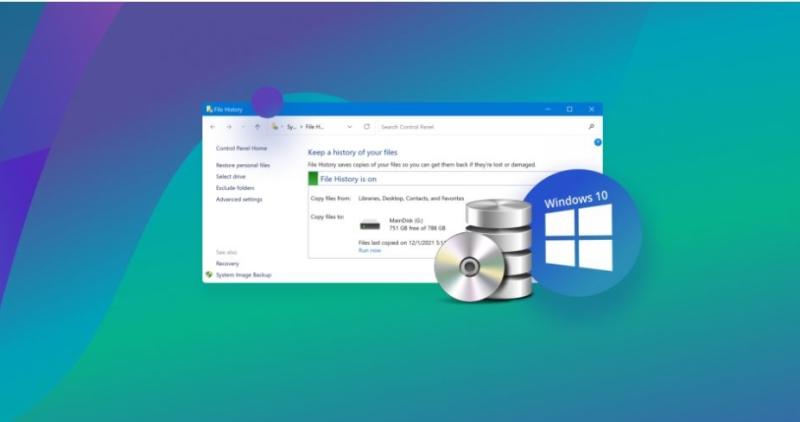
Part 1: What Microsoft Never Told You About System Image Backup
Windows System Image Backup isn't as reliable as it seems. It's technology from the Windows 7 era, built when:
Hard drives were smaller
Hardware was simpler and mostly uniform
SSD migration wasn't common
Recovery meant a DVD
Here are three problems Microsoft doesn't highlight:
It fails silently
Even if your system image backup https://4ddig.tenorshare.com/hard-drive/how-to-move-windows-to-another-drive.html completes without errors, the resulting file can be damaged or incomplete. The backup may look fine, but corruption can exist at a low level. You won't discover the problem until you try to restore, leaving your data at risk.
It struggles with different hardware
Restoring a system image backup to a different PC or even another model of the same brand often fails. The tool was built for uniform hardware, not modern PCs with varying components. This limitation makes it unreliable if you upgrade or replace parts in your system.
It's being slowly deprecated
Microsoft has not updated the system image backup tool in the modern Settings app. It remains buried in the old Control Panel. Its outdated placement signals a lack of support and future development, making it less trustworthy for protecting your data over time.
If you've restored successfully, consider yourself lucky. But backup should not depend on luck.
Part 2: The Hidden Failure Rate - Why You're Right to Be Skeptical
Thousands of users report failures online. A quick search for system image restore failed shows countless threads. People followed instructions perfectly, yet lost their data.
Common errors include:
"Windows cannot find a system image on this computer."
"The system image restores failed."
"The backup catalog is corrupted."
Why this happens:
The tool relies on Volume Shadow Copy Service (VSS). When VSS fails, the backup is compromised.
It creates one large VHDX file. Damage at the byte level destroys the whole backup.
The unfair part? Users blame themselves. "Maybe I set it up wrong." It's not your fault. It's the tool. The good news: You don't have to gamble anymore. There's a method professionals trust and you can use it too.
Part 3: A Better Definition of "System Backup"
A true system backup is not just a file you hope works later. It is a copy of your entire system that can be used immediately. Unlike a traditional system image backup, it doesn't require long restore processes. You can boot from it and continue working without waiting or risking data loss.
Key Insight
The best backup doesn't need to be "restored." You simply plug it in, and it works. A cloned drive mirrors your OS, applications, and files exactly. If your main drive fails, you swap it with the clone and your system functions as before. This approach redefines what backup entire computer truly means.
Transition
This isn't a futuristic idea. This is disk cloning, a method IT professional have trusted for decades. With a clone hard drive, you have a ready-to-use system that replaces traditional system image backup entirely, making data protection fast, reliable, and certain.
Part 4: Disk Cloning - The "Bootable Backup" Explained
Disk cloning creates an exact copy of your hard drive, sector by sector.
It is not compressed.
It is not a file to mount.
It is a literal duplicate of your entire drive.
What this means for you:
If your main drive fails, you do not restore. You swap drives.
Unplug the dead drive, plug in the cloned one, and press power.
Your computer boots up exactly where you left off same desktop, browser tabs, and files.
Why this is better:
No errors from VSS
No large single-file risk
Works across hardware if configured properly
Instant boot with full access to your files
This is the modern, reliable definition of backup entire computer.
Part 5: How to Create a Bootable System Backup in 3 Steps
You don't need to be a technician to protect your system. Tools like 4DDiG Partition Manager https://4ddig.tenorshare.com/4ddig-partition-manager.html make clone hard drive simple, fast, and reliable. Unlike traditional system image backup, this software creates a fully bootable backup that works immediately. You don't need to restore files or hope the backup works it is ready when you need it. In just three steps, you can safeguard your Windows OS, applications, and personal files. First, select your main system drive as the source. Next, choose an external or spare internal drive as the destination. Finally, start the cloning process.
Key Features of 4DDiG Partition
Manager:
Supports both HDD and SSD, allowing you to clone hard drive regardless of storage type.
Creates a bootable backup instantly, so you can backup entire computer without waiting.
Copies all data, applications, and Windows system files to avoid errors during recovery.
Offers an intuitive interface that guides even beginners through the cloning process.
Supports Windows 10 and 11, ensuring compatibility with modern operating systems.
3-Step Bootable Backup Workflow:
Step 1: Connect a hard drive to your computer. Open 4DDiG Windows Backup and select "Create a backup task" to start preparing your backup.
Step 2: Choose the disk or partitions you want to backup. Then click the file icon to select where the backup file will be saved.
Step 3: Click "Start Backup" and confirm on the pop-up window. Wait until the process completes. You can also toggle the option to shut down the PC automatically after backup.
Part 6: The 15-Minute Test That Proves It Works
Traditional backups sit on shelves. You hope they work, but there's no guarantee.
With a cloned drive, you can test now without risk:
Shut down your computer.
Disconnect your internal drive or change BIOS boot order.
Connect your cloned backup drive.
Power on.
What should happen:
Your computer boots normally.
All files and settings are intact.
Your desktop appears exactly as before.
This transforms backup entire computer from hope into certainty. You know your clone works, unlike traditional system image backup. Once you test it, you'll never look at system image backups the same way again.
FAQ
1. I already have a Windows system image backup. Should I delete it?
Keep it temporarily, but do not rely on it. Use disk cloning to create a bootable backup that you can trust. The old backup is more for reference than recovery.
2. Can I clone to a smaller drive if I don't have a lot of data?
Yes. Most cloning tools, like 4DDiG Partition Manager, let you clone only the used space. Make sure the destination drive has enough room for all files.
3. What if my computer won't boot from the cloned drive?
Check BIOS settings. Ensure the clone is marked as the first boot device. If issues persist, use the tool's built-in repair feature to fix boot records.
4. Can I update my cloned backup regularly?
Yes. You can schedule incremental clones or replace the clone periodically. This keeps your backup entire computer current without creating multiple copies.
5. Is disk cloning safe for Windows 10 upgrades?
Absolutely. A cloned drive mirrors the OS, updates, and apps exactly. You can test upgrades on the clone first if desired.
Conclusion
System image backup often fails silently. They rely on outdated tools and single-file storage that can corrupt. You are not alone if your system image restore failed. The solution is clear: stop relying on old Windows tools. Use disk cloning to backup entire computer. With a cloned drive, you simply plug it in, and it boots. No restores, no guessing. Tools like 4DDiG Partition Manager make cloning easy, even for beginners. By following this method, you gain a backup that works every time, protects your data, and gives you certainty instead of hope.
P.O Bagarji Town Bagarji Village Ghumra Thesil New Sukkur District Sukkur Province Sindh Pakistan 65200.
Wiki Blogs News always keeps careful online users to provide purposeful information and to keep belief to provide solution based information.
This release was published on openPR.
Permanent link to this press release:
Copy
Please set a link in the press area of your homepage to this press release on openPR. openPR disclaims liability for any content contained in this release.
You can edit or delete your press release Stop Making System Image Backups That Might Fail. Here's What to Do Instead here
News-ID: 4404545 • Views: …
More Releases from Wikiblogsnews

Best Online Broker in Malaysia: Fees, Markets and Tools Ranked for 2026
Two brokers can both let you buy shares in Maybank and look almost identical in the app store. The difference between them shows up in your account statement a year later. With the FBM KLCI hovering near 1,680 in June 2026 and more Malaysians putting cash to work, picking the best online broker malaysia https://www.moomoo.com/my residents can grow with is worth a careful look. This guide ranks brokers on the…

How Trash Daddy Dumpsters Is Raising the Standard for Dumpster Rentals Across Co …
When most people think about dumpster rental companies, they imagine a simple transaction: a container arrives, waste goes in, and it's collected a few days later.
In reality, the best operators understand that they're helping customers navigate some of life's biggest projects-home renovations, roofing replacements, construction jobs, estate clearances and commercial developments. That's the philosophy behind https://trashdaddydumpsters.com/ , a company that has built its reputation on reliability, transparency and customer service.
Rather…

Travel Technology That Actually Solves Real Problems
Travel has never been more accessible, but it has also become more complex. From navigating unfamiliar cities to managing flight delays, language barriers, lost luggage, and personal security, modern travelers face a wide range of challenges. Fortunately, technology has evolved to address many of these issues, offering practical solutions that make journeys smoother, safer, and less stressful.
However, not every travel gadget or app is genuinely useful. While some technologies are…

Manchester E-Bike Showcases Top-Rated Electric Bicycles for Premium Performance …
MANCHESTER, UK - Manchester E-Bike has curated a select collection highlighting what riders rate as the best e-bike UK https://manchesterebike.co.uk/ options available today. The collection focuses on high-efficiency mid-drive motors, extended battery ranges, and advanced rider comfort features, establishing a benchmark for premium urban cycling.
The featured models focus on satisfying demanding riders who require exceptional reliability for long-distance commutes or varied terrain. Through partnerships with leading designers, the store provides…
More Releases for Backup
Cloud Business Backup Market Hits New High | Major Giants Google Cloud Backup, A …
HTF MI recently introduced Global Cloud Business Backup Market study with 143+ pages in-depth overview, describing about the Product / Industry Scope and elaborates market outlook and status (2025-2033). The market Study is segmented by key regions which is accelerating the marketization. At present, the market is developing its presence and some of the key players from the complete study are Acronis, Barracuda Networks, Carbonite, Cohesity, Commvault, Datto, Druva, IBM,…
BDRSuite partners with Backup Garantido to Offer Reliable Backup Solution in Bra …
BDRSuite, a leading Backup and Disaster Recovery software provider, has partnered with Backup Garantido, and this partnership will focus on reaching out to a wide variety of businesses in Brazil for their Backup and Disaster Recovery needs.
Backup Garantido has been providing security, SaaS, and disaster recovery services for more than a decade. With BDRSuite, Backup Garantido can now provide its customers a complete Backup and DR solution that caters…
Growth in Backup Requirements of Enterprises Dominating Cloud Backup & Recovery …
Recovery and cloud backup play a vital role in business continuity strategy. The adoption of cloud backup provides additional benefits such as cost saving, and security, storage, and virtualization of the data. Cloud storage solutions provide infrastructure and application support to enterprises at a lower cost than on-premises storage solutions.
The Cloud Backup & Recovery Software Market is driven by the need for companies to reduce their IT expenditure, increase in…
Ashampoo® Backup Pro 12 – Intelligent backup mechanism for uninterrupted work
With Backup Pro 12, German software developer Ashampoo® released their easy to use yet powerful backup solution. Saving, rescuing or restoring even bootable system disks is now easier than ever before and viruses, ransomware or total system failures just lost their terror. For the first time, Ashampoo® Backup Pro 12 now covers all aspects of data backups in a single program. While the handy hard disk checker is light on…
VM Backup made simple – Archiware announces virtual backup product
Archiware GmbH, manufacturer of data management software, releases the public beta version of VMware® backup product Archiware Pure. Going on sale this summer, Archiware Pure completes Archiware’s portfolio of easy-to-use software solutions for end-to-end data protection.
Munich, February 14th, 2017 - Virtualization is a well-established, rapidly growing and future-proof technology. Today’s virtual setups require a secure and simple backup solution. Archiware’s cutting-edge new product Archiware Pure empowers small and medium-sized businesses…
Handy Backup Enhances Windows Backup Functionality with Windows 8 Compatibility
Alliance, Ohio, April 24, 2012 – Novosoft, an acclaimed developer of data protection software solutions for Windows and Linux, reported the first round of tests for Windows 8 compatibility with the Handy Backup software to be successfully run. All major Windows backup options, like Windows 8 disk imaging or backup to the cloud, are claimed to be fully delivered by Handy Backup for the OS edition available for pre-release usage…

